Preview with sample data. No real money is charged, no order reaches a real kitchen, no real text message is sent. The sign-in code is always 123456.
BAT RESTAURANT user guide
A working preview of a restaurant's own ordering app, the screen the restaurant runs it from, and the system used inside the restaurant. Built first with New Super Pho in Duluth, Georgia. Everything in it is sample data.
What is in this preview
Three parts, opened from the buttons at the top of this page. Each one carries New Super Pho's name and menu because it was built with that restaurant first.
- The guest app. What the restaurant's customers would have on their phones: menu, ordering for pickup, points, offers, and delivery, group orders and catering as phase 2.
- The restaurant admin. What the owner and managers use on a computer: every order in one list, the menu on every channel, offers, the rewards program, reports, guests and reviews.
- The in-restaurant system. Ordering from the table by QR code, the kitchen screens, broth pots, the food safety log and the owner's dashboard.
The guest app and the restaurant admin keep everything in the browser you are using. Another phone or computer does not see what you did, and Account → Preview · Reset sample data clears it.
Guest app: choose a branch and browse the menu
The first screen asks which restaurant to order from. Each branch has its own prices, opening hours and sold-out dishes.
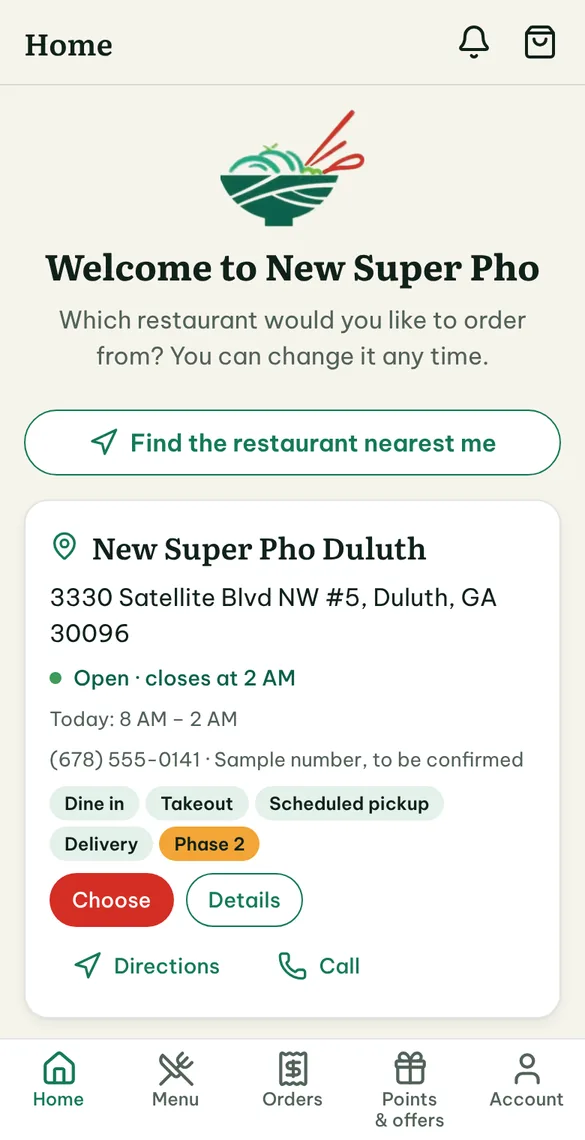
- Tap Choose on a branch. Details shows its hours; Directions and Call open the phone's maps and dialer.
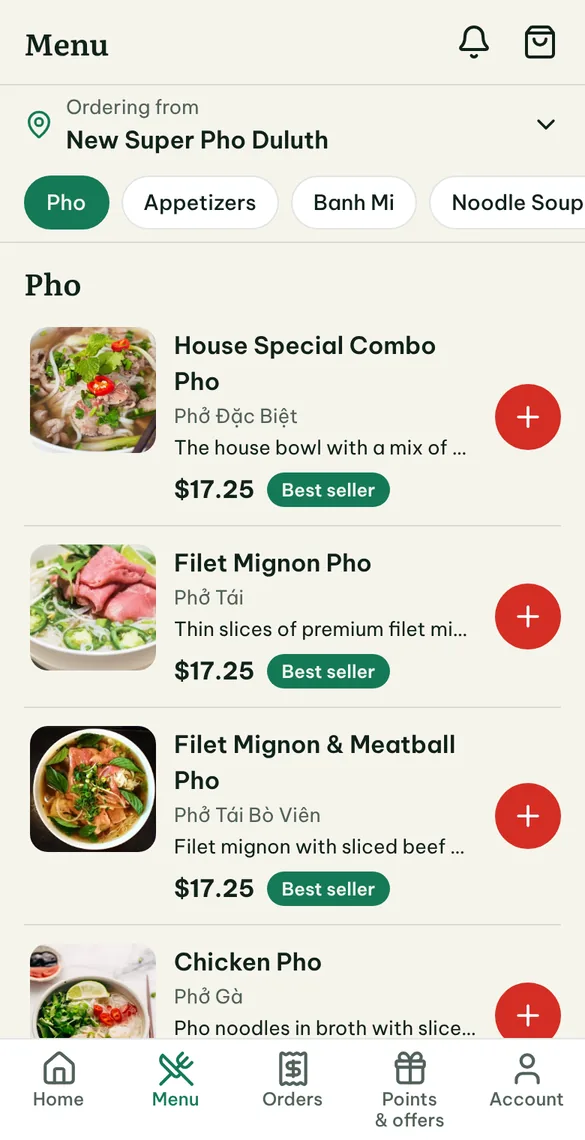
- Open Menu. Dishes are grouped by category and tagged Best seller, Deal or New; a dish that ran out shows Sold out.
- Search finds a dish by its English or Vietnamese name, with or without accents.
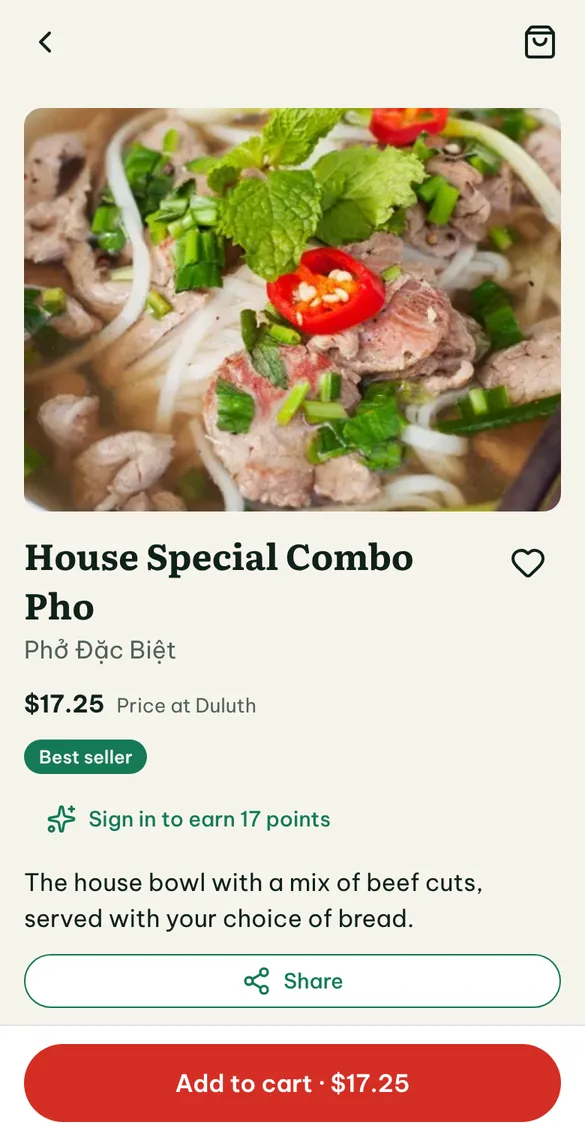
- Tap a dish to choose the size, noodles, onion, broth and add-ons, write a note for the kitchen, and read reviews from guests who picked up that dish.
- Tap Add to cart. The button shows the price with the choices included.
Guest app: cart and checkout
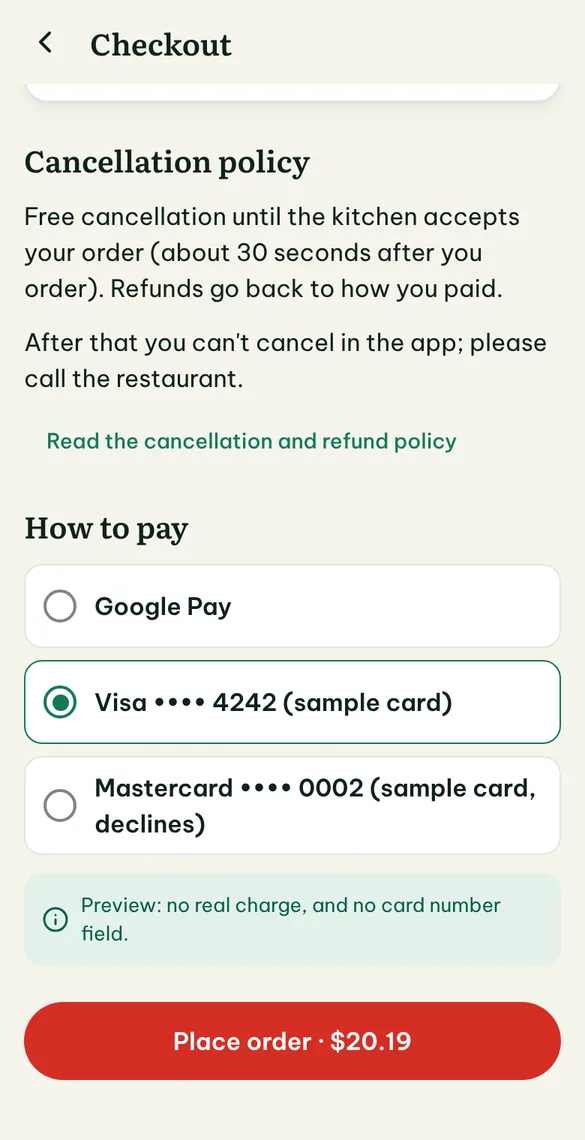
Checkout is one page: how to get the food, who picks it up, discounts, tip, the price breakdown and how to pay.
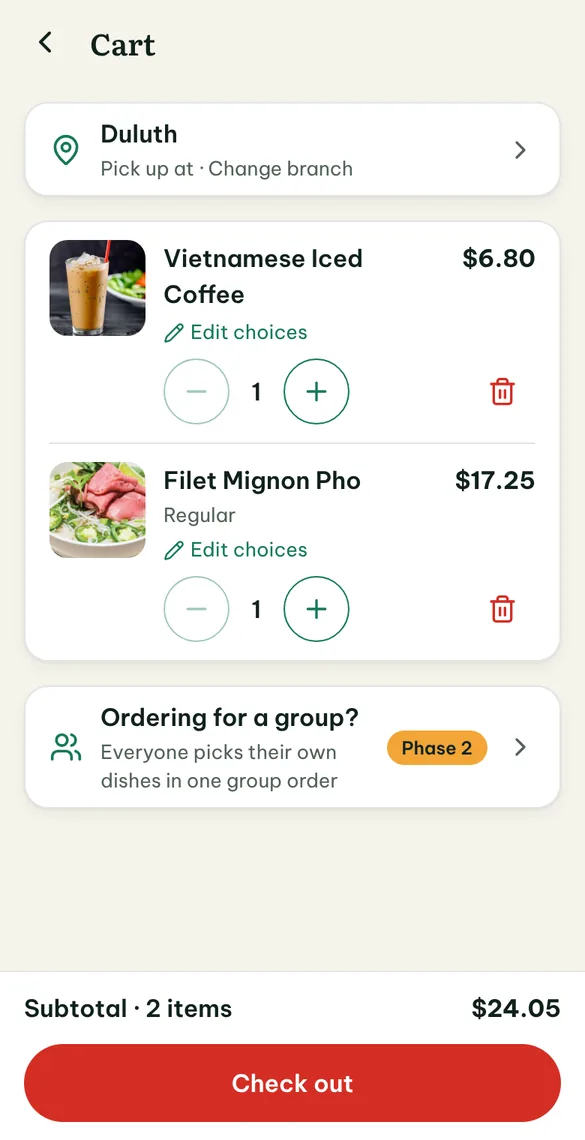
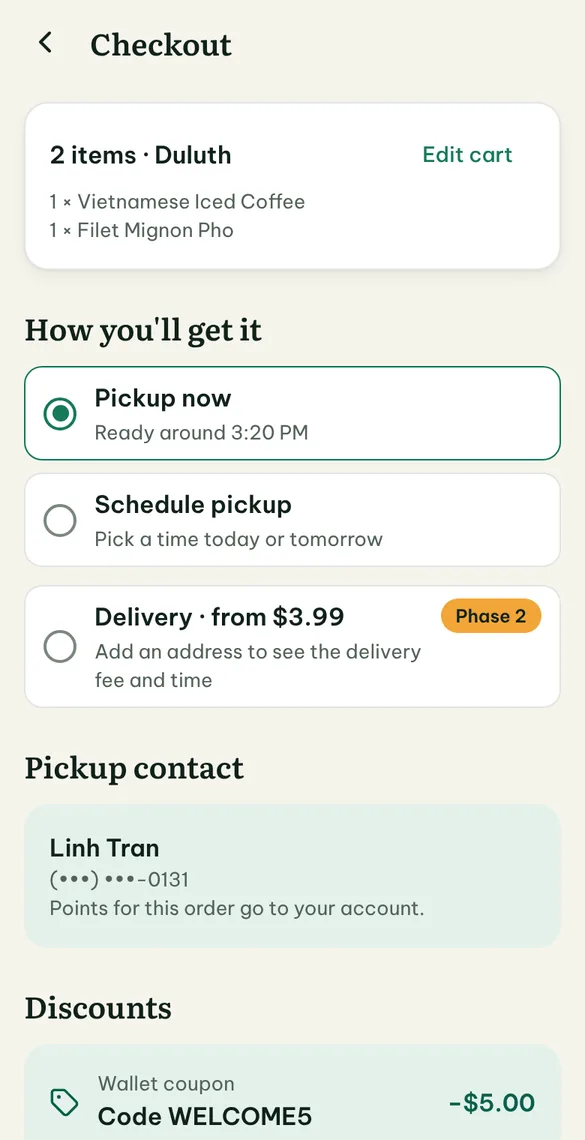
- In the cart, change the quantity, tap Edit choices to reopen a dish, or change the branch.
- Tap Check out and choose Pickup now or Schedule pickup for a time today or tomorrow.
- Under Discounts, an offer that matches the order applies by itself, or use one coupon or a promo code. An order takes one offer or one coupon, plus one reward bought with points.
- Choose a tip, check the total, and pick a way to pay. The preview only has sample methods; one sample card is declined on purpose so you can see that screen.
- Tap Place order.
There is no field for a card number anywhere in the preview, and nothing is charged.
Guest app: track the order, pick up and review
After ordering, the guest gets an order code to read at the counter and sees each stage: sent to the kitchen, accepted, cooking, ready, picked up.
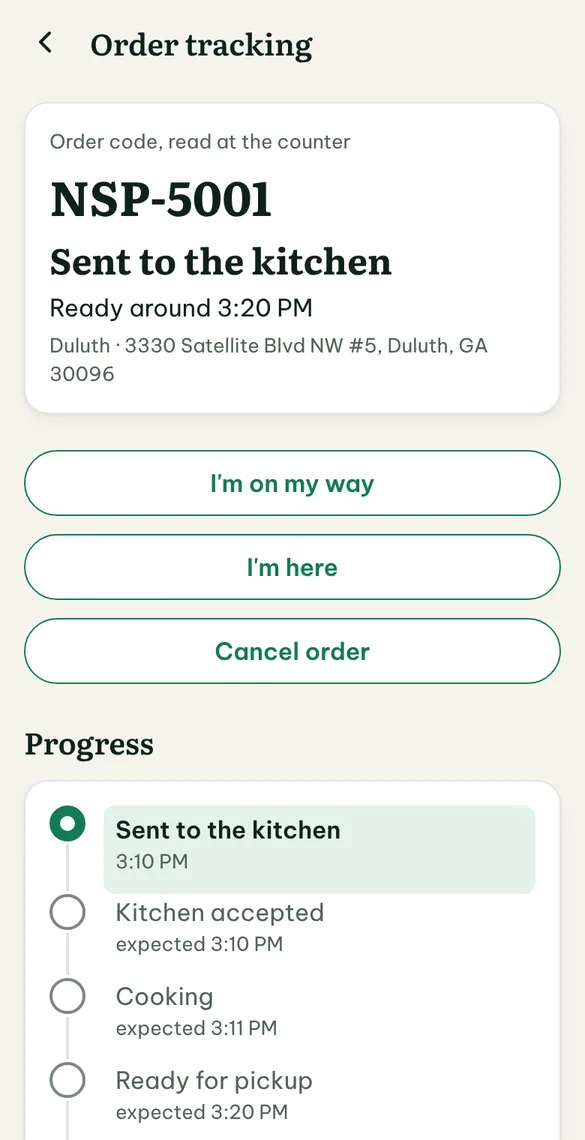
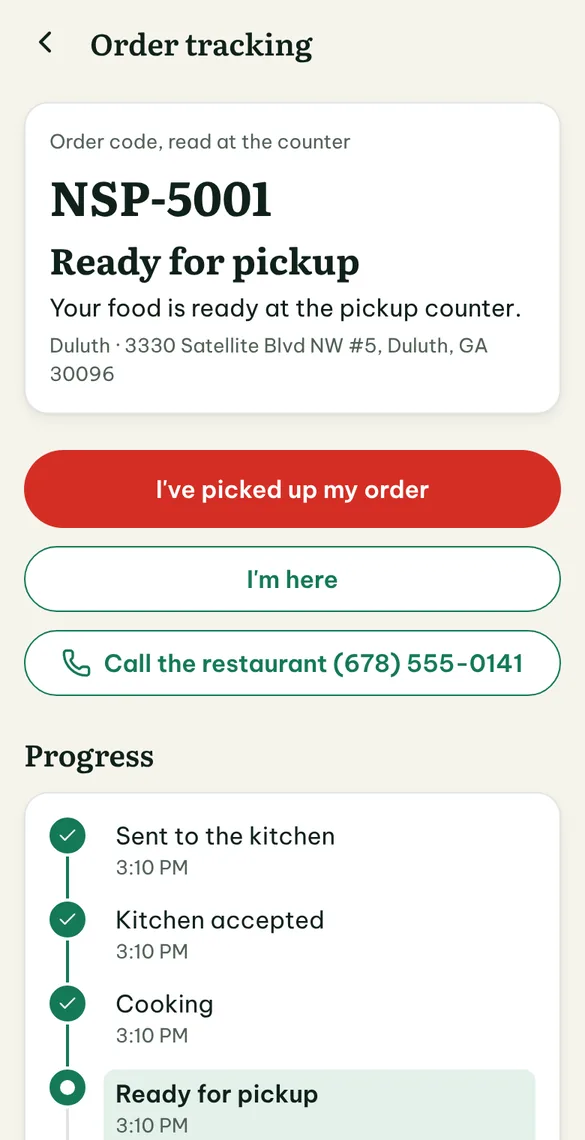
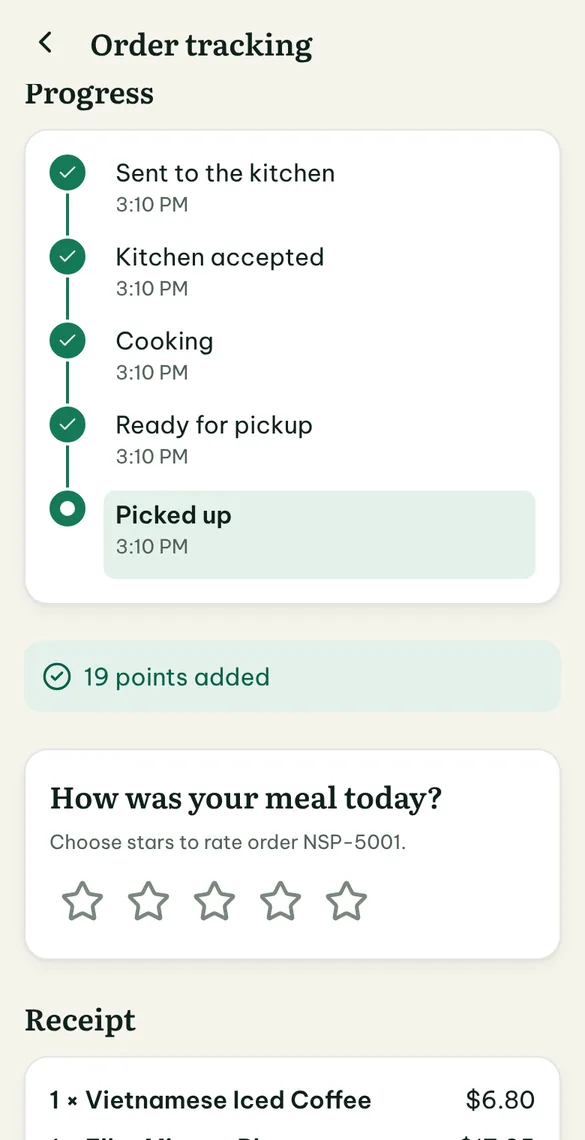
- Cancel order works until the kitchen accepts the order. I'm on my way and I'm here tell the restaurant where the guest is.
- In the preview, tap Preview: fast-forward to move to the next stage, or move the order from the restaurant admin.
- When the order is ready, tap I've picked up my order. Points for the order are added at that moment.
- Rate the food and the service with stars and an optional comment. The review shows on that dish and in the restaurant admin.
- Orders keeps the history, with Reorder on every past order.
Guest app: sign in, points and the membership card
Guests sign in with a phone number. The rewards program belongs to the restaurant; the numbers in the preview are samples for the owner to set.
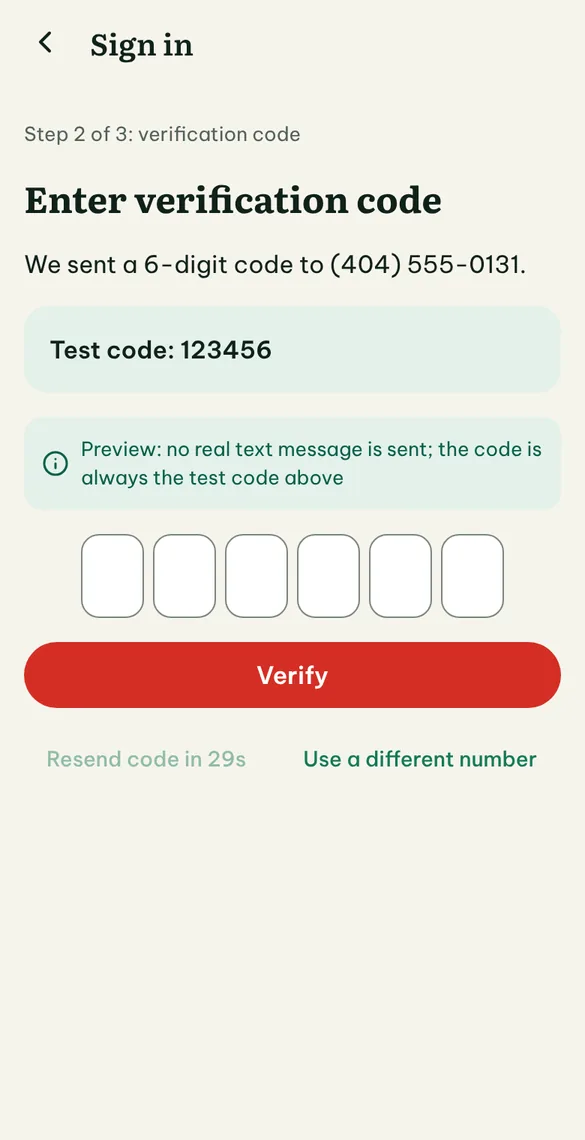
- Open Account, tap Sign in or create account, type a US-format number such as (404) 555-0131, tick the consent box and tap Send code.
- Type the test code 123456 shown on the screen, then a name. A birthday (month and day) is optional and is used for a birthday treat.
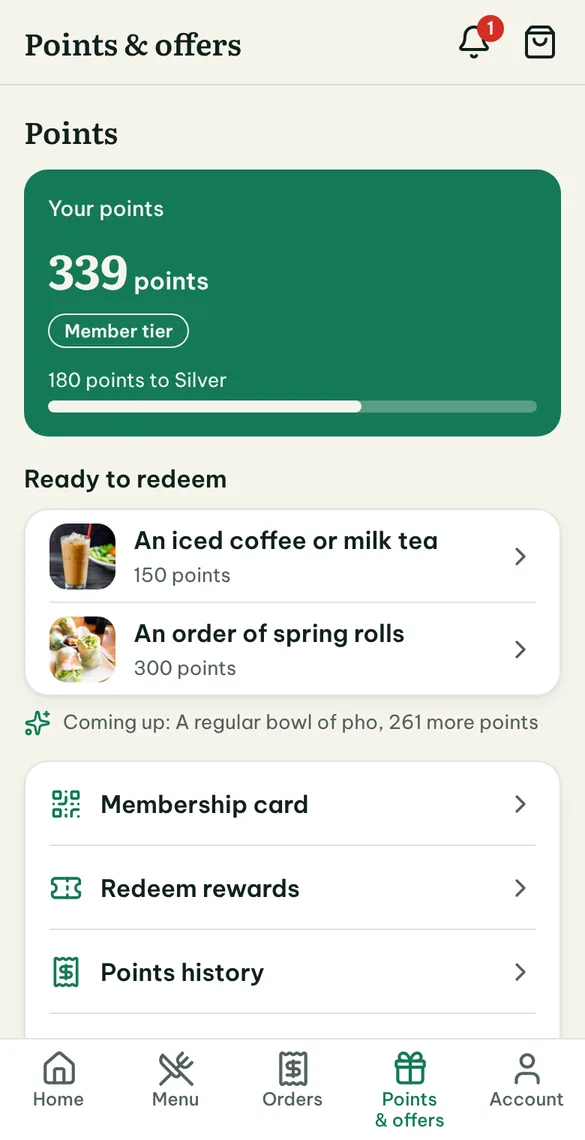
- Points & offers shows the balance, the tier and what the points can buy. In the sample rules every $1 earns 1 point and there are three tiers.
- Tap Redeem rewards to turn points into a reward, then choose that reward at checkout.
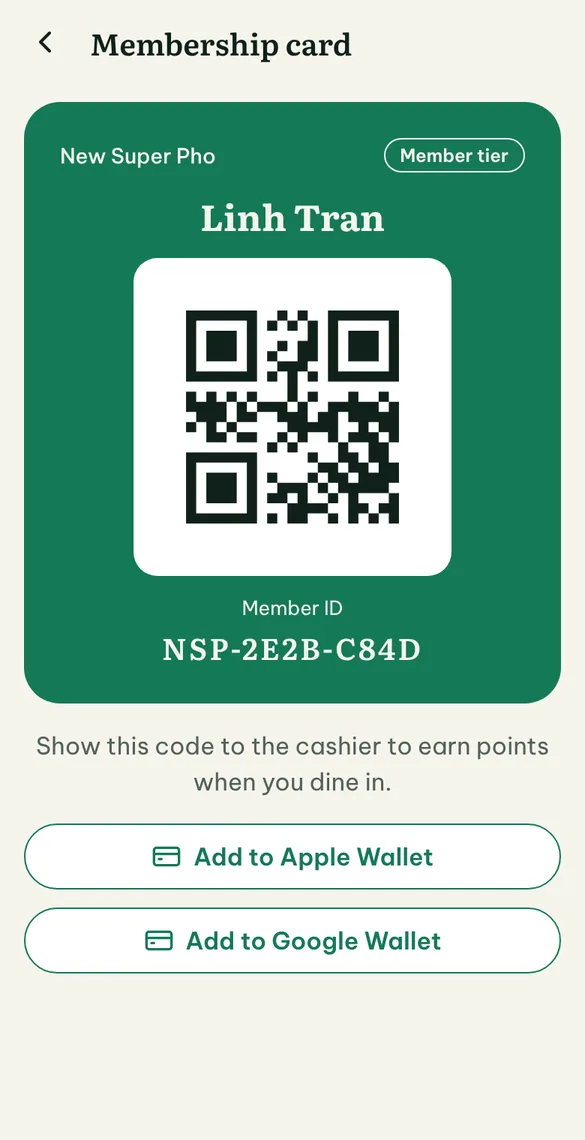
- Membership card shows a QR code and a member ID for the cashier to scan when the guest dines in.
- Account also has the profile, favorite dishes, the guest's own reviews, language, and Delete account.
The wallet buttons on the card only show a preview message; no card is added to Apple Wallet or Google Wallet.
Guest app: offers, coupons and refer a friend
Offers the restaurant creates show up here as soon as they are turned on in the restaurant admin.
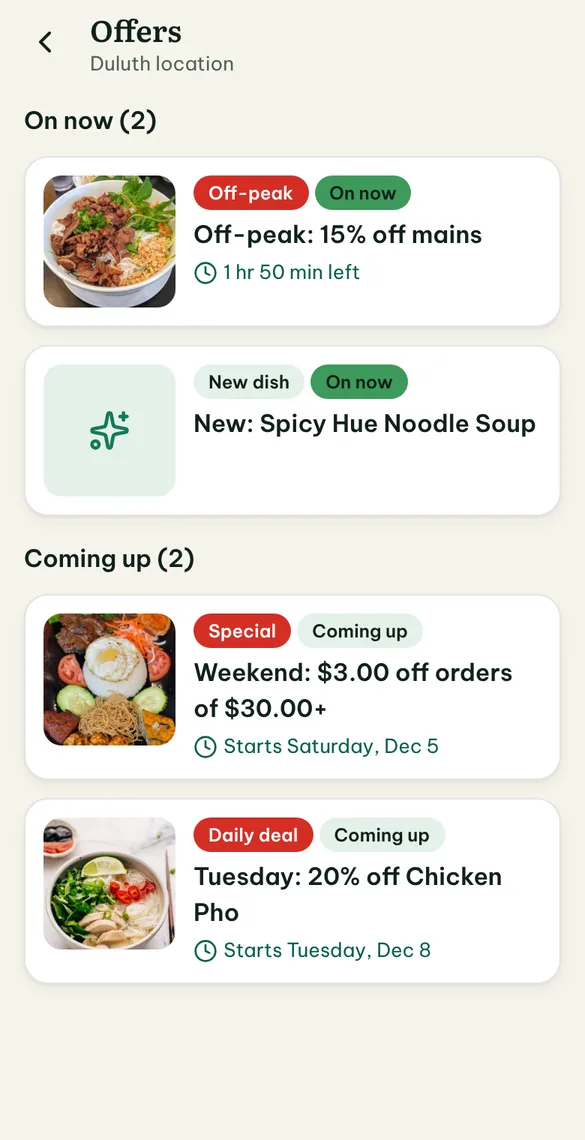
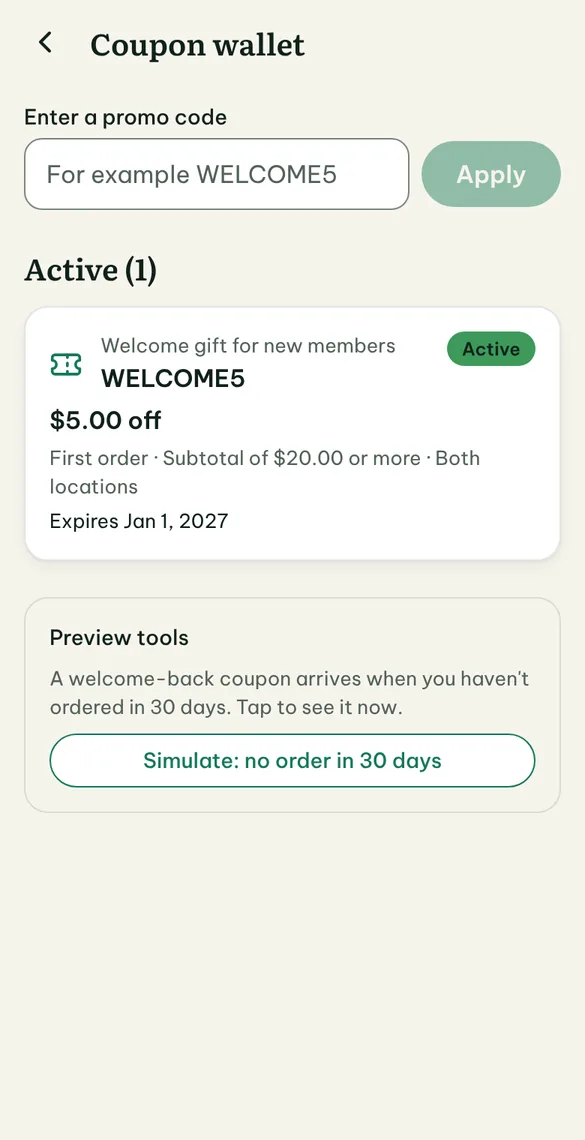
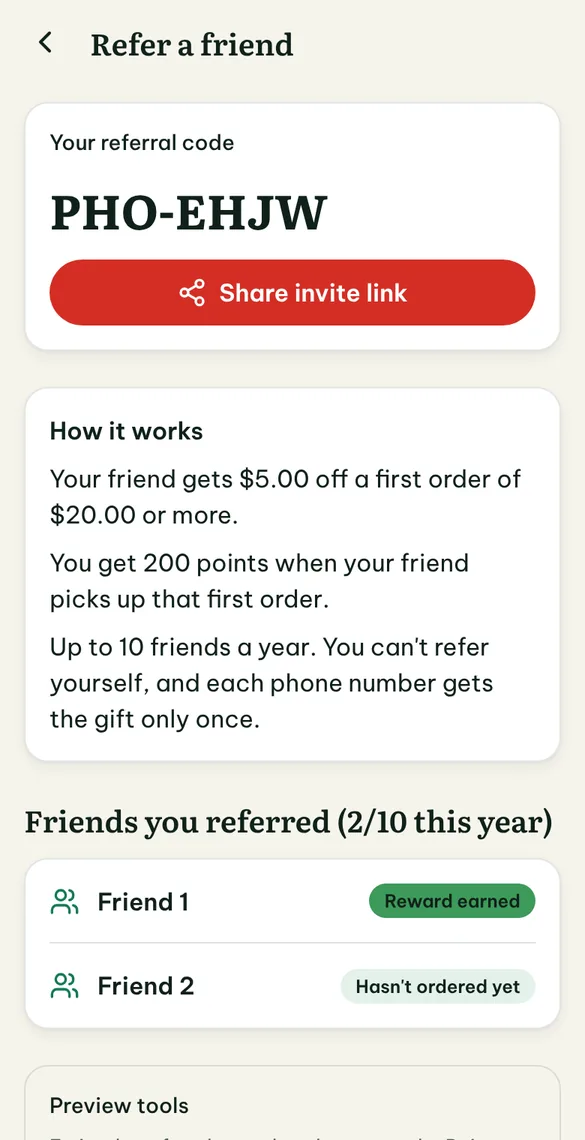
- Offers lists what is on now and what is coming up: a new dish, a daily deal, an off-peak discount or a special.
- Coupon wallet holds the guest's coupons. A new member gets the sample coupon WELCOME5: $5.00 off a first order of $20.00 or more.
- Refer a friend gives each member a code and an invite link. In the sample rules the friend gets $5.00 off and the member gets 200 points when the friend picks up a first order.
- Notification settings: phone notifications, SMS and email are all off until the guest turns one on, by topic, by branch and by interest, with one button to unsubscribe from everything.
- The buttons under Preview tools act out things that take time in real life, such as a friend picking up a first order.
Guest app: delivery, group orders and catering (phase 2)
These three are marked Phase 2 in the app. The screens work with sample data so the restaurant can decide how they should run.
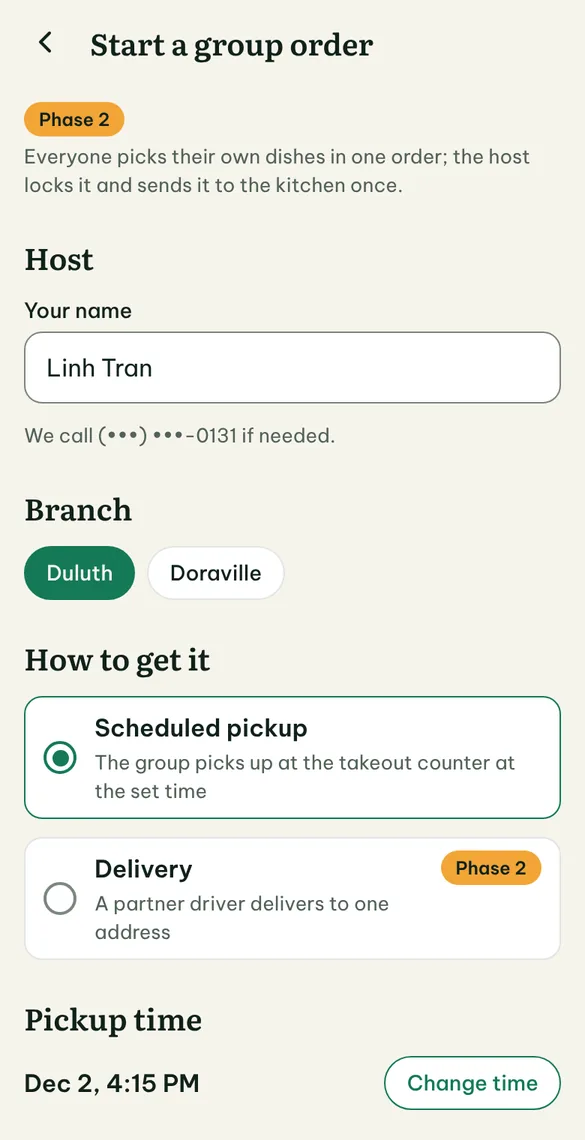
- Group order: the host picks the branch, the pickup time and a deadline, then shares an invite link. Everyone picks their own dishes, and either each person pays their part or the host pays for all.
- In the preview the whole group is on one device: use Add a sample member to see it fill up.
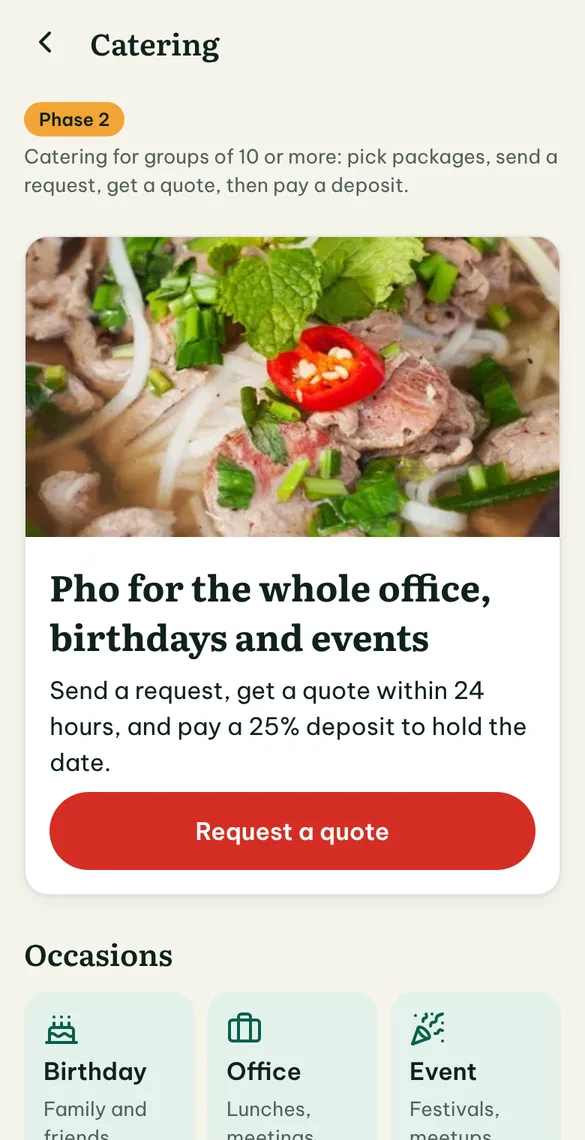
- Catering: pick an occasion and packages, send a request, receive a quote, pay a deposit to hold the date. The preview sends a sample quote after about 30 seconds.
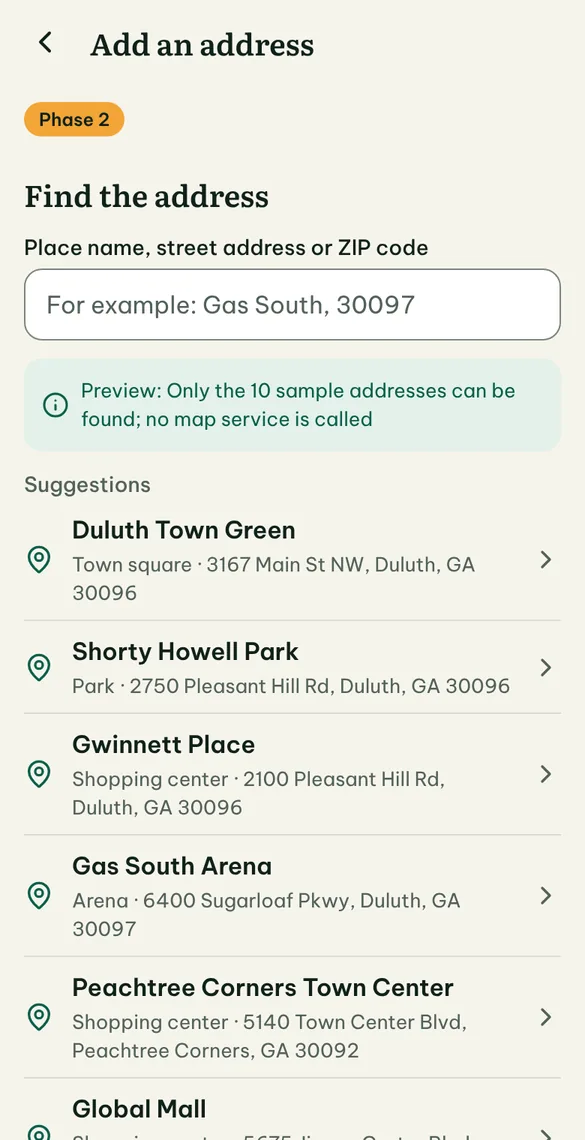
- Delivery: save an address and choose delivery at checkout. The preview knows ten sample places and does not call a map service.
Delivery is planned through partner drivers (DoorDash Drive or Uber Direct). Neither is connected.
Restaurant admin: every order in one list
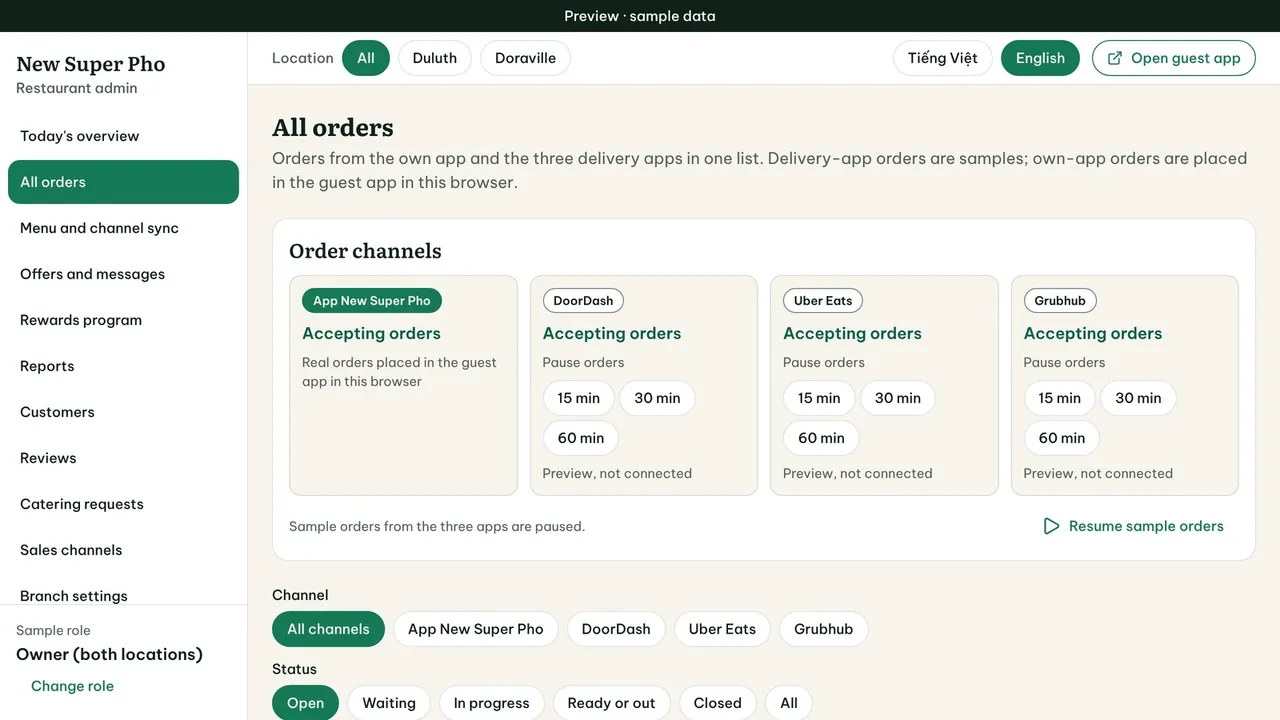
Orders from the restaurant's own app sit in the same list as orders from DoorDash, Uber Eats and Grubhub. In the preview the three delivery apps are not connected, so their orders are samples that arrive about every 45 seconds.
- Open the restaurant admin and choose a sample role: Owner (both locations), Duluth manager or Doraville manager. A manager only sees their branch.
- Today's overview shows orders, revenue and the average order for the day, what needs attention, and a table by channel.
- Open All orders. On a new order choose the prep time and press Accept, or Reject.
- Move the order along with Start cooking, Mark ready, then Picked up or Handed to driver. An order placed in the guest app in the same browser follows on the guest's tracking screen.
- Filter by channel and by status. A delivery app can be paused for 15, 30 or 60 minutes when the kitchen is full.
- Pause sample orders stops new sample orders while you look around.
Restaurant admin: menu, offers and the rewards program
What the restaurant changes here shows in the guest app in the same browser right away.
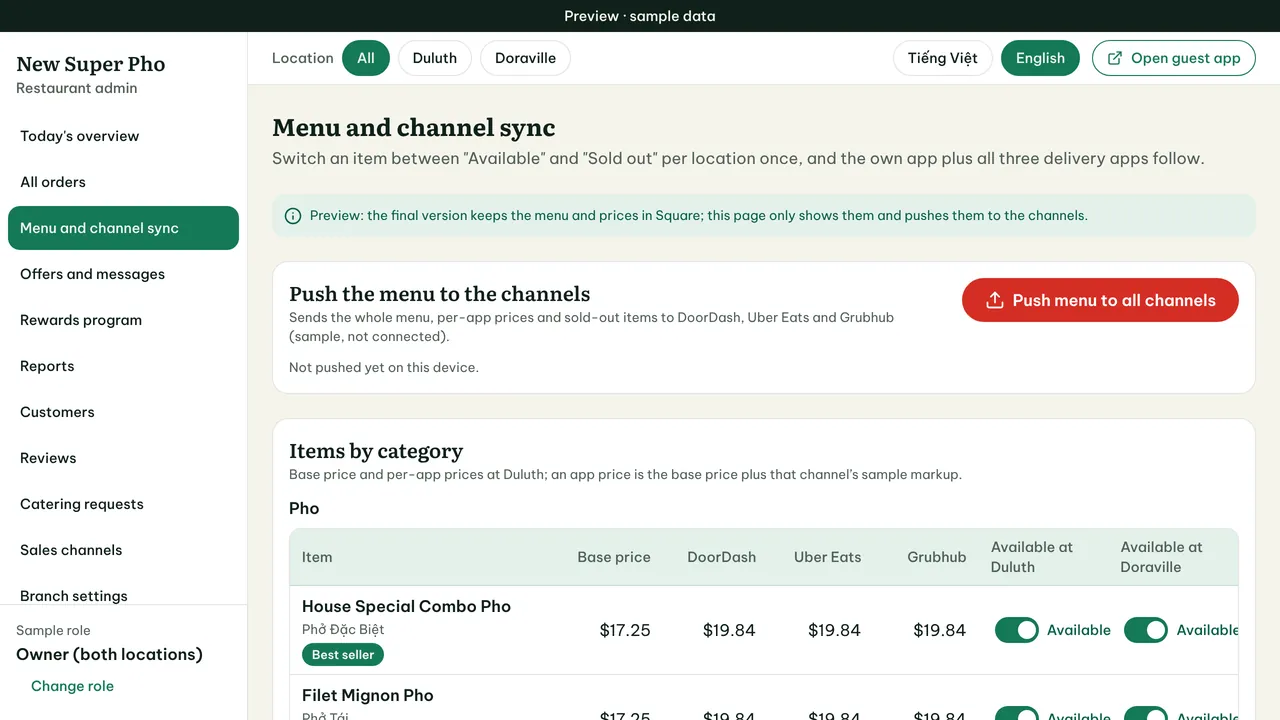
- Menu and channel sync: switch a dish between Available and Sold out for a branch. The table shows the base price and the price on each delivery app, which is the base price plus that channel's markup.
- Push menu to all channels records a sample push; nothing is sent to the delivery apps.
- Offers and messages: create an offer by type, discount, dishes, days, hours and branch, and turn it on or off.
- Rewards program: set points per dollar, the tiers, the rewards and their point prices, the birthday gift and when points expire, then press Save rules.
- Branch settings: edit the opening hours of each branch. The other numbers on that page are shown for reference.
In the finished system the menu and prices are meant to come from Square; this page then shows them and pushes them to the channels.
Restaurant admin: reports, guests and reviews
The reports put the own app next to the three delivery apps, so the owner sees what each channel costs.
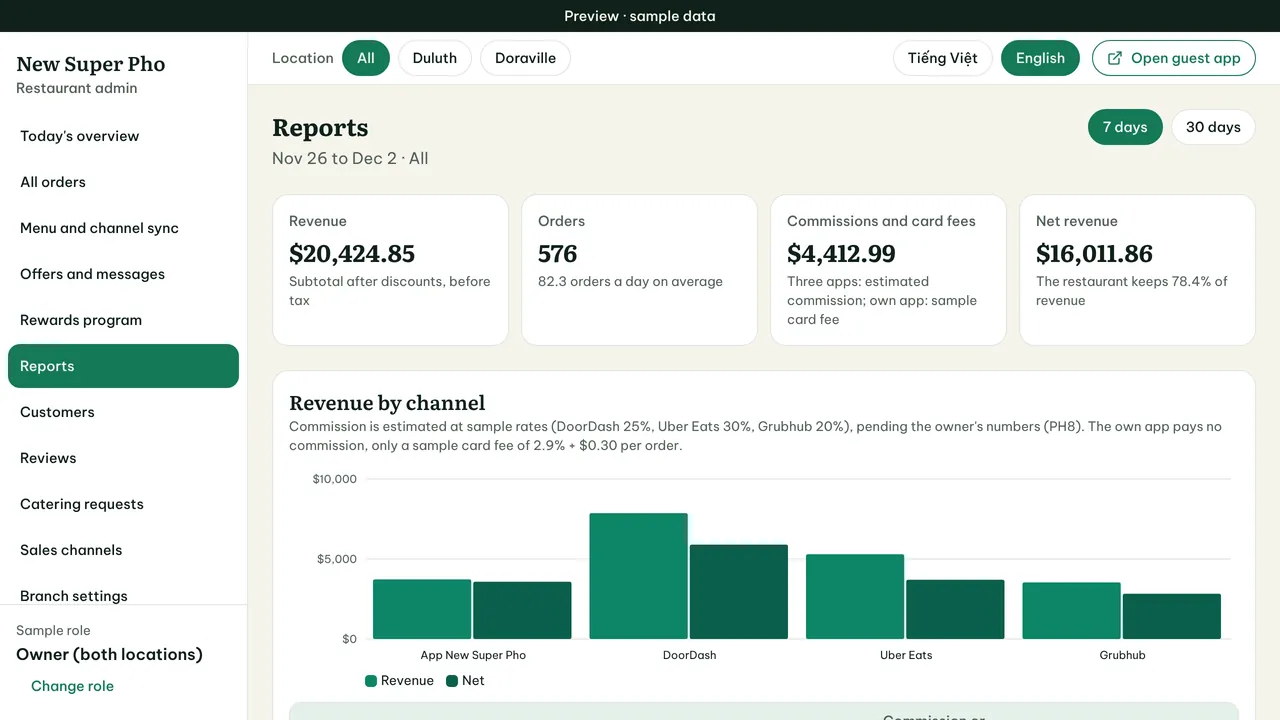
- Reports: choose 7 or 30 days. For each channel the table shows orders, revenue, the commission or card fee, and what the restaurant keeps.
- The commission rates and the card fee are sample numbers until the owner enters the real ones.
- Customers: the guest list with tier, points, last order and which messages each guest agreed to. Only the last four digits of a phone number are shown.
- Reviews: filter by stars and reply. There is no button to hide or delete a review.
- Catering requests: send a quote, see the deposit, confirm the event, and read the event calendar.
- Sales channels: set the markup and the default prep time for each delivery app, and read what it takes to connect each one for real.
The preview does not export the guest list.
In-restaurant system: tables and the owner's dashboard
This part runs on a server with sample data for the Duluth restaurant, so everyone trying the demo sees the same data. Payments go to a simulated POS.
- Tap Open the in-restaurant system and pick a role.
- Ordering interface shows the QR code of a sample table. Scan it with a phone, or tap Open it on this device, to order as a guest at that table. No app is needed, and everyone at the table shares one cart.
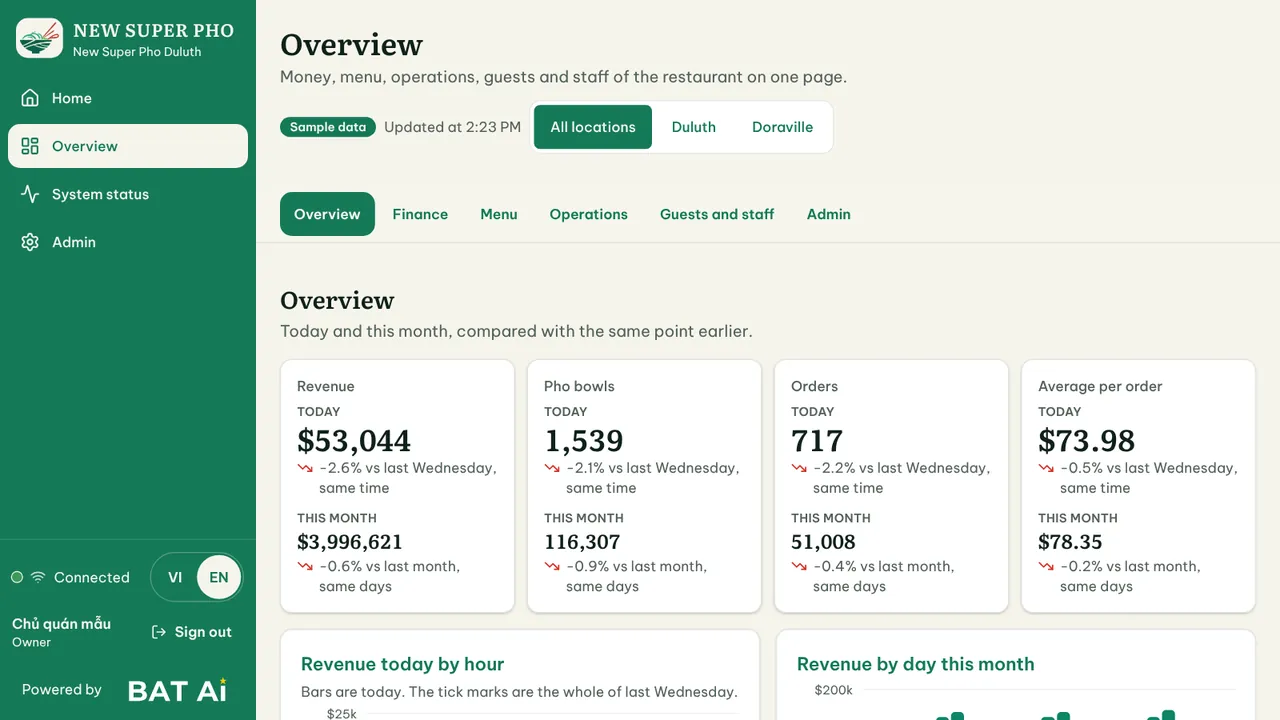
- Restaurant owner opens the overview: revenue, pho bowls, orders and the average per order, today and this month, for all locations or one.
- The tabs Finance, Menu, Operations and Guests and staff go deeper on the same page.
In-restaurant system: kitchen, broth pots and food safety
Pick Head chef or Staff on the first screen.
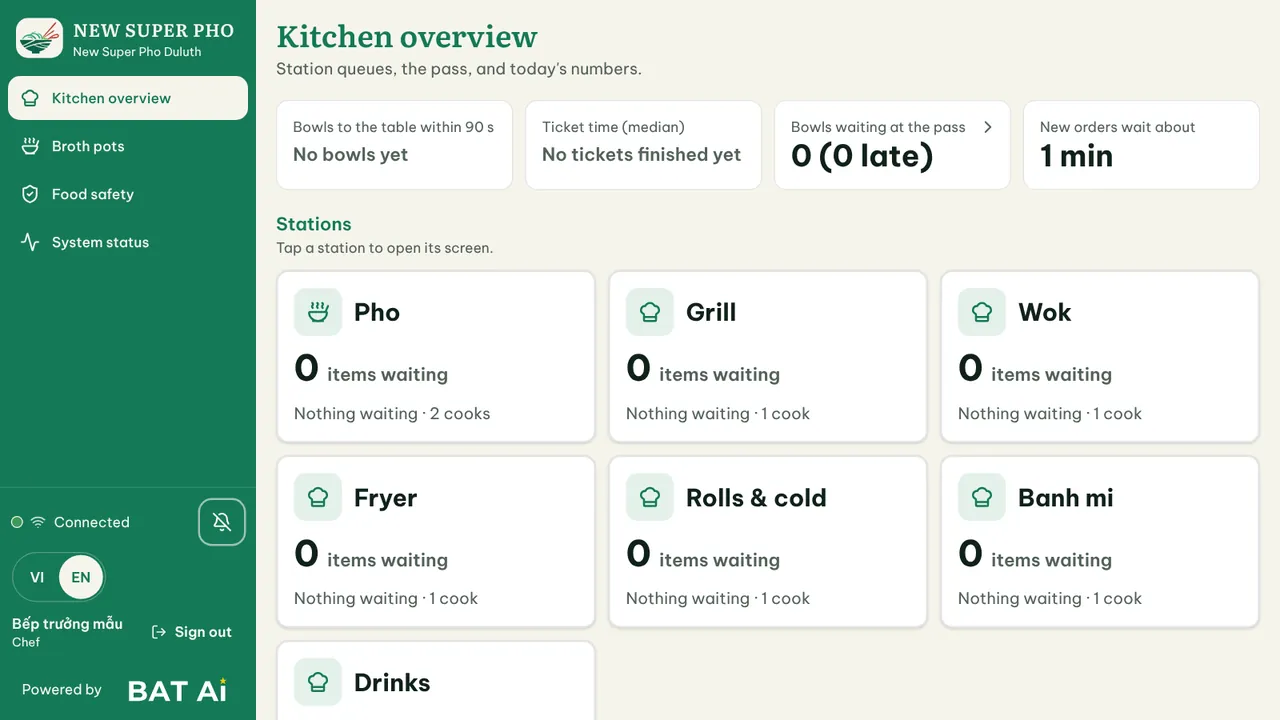
- Kitchen overview shows the queue at each station, the bowls waiting at the pass, and how many bowls reached the table within 90 seconds.
- Tap a station to open its screen, or open the combined screen for all stations.
- Broth pots follows each pot. Food safety keeps the temperature log.
- Staff opens the pass screen for servers and the list of pre-orders.
The pot and temperature sensors are simulated in the demo.
What it takes to run this for real
None of this is in place yet. This is the list we go through with a restaurant before it opens to real guests.
- Payments. A Square account for the restaurant, so the app can take real payments and read the menu and prices from Square.
- App stores. The restaurant's own Apple Developer and Google Play accounts, the app name and the icon.
- Delivery apps. A merchant account on DoorDash, Uber Eats and Grubhub for each branch, and their approval to receive orders through an integration.
- The restaurant's numbers. Points rules, offers, delivery area and fees, markups and commission rates, catering packages and deposits.
- Policies. The cancellation and refund policy, terms of use and privacy policy, reviewed by a lawyer. The ones in the preview are drafts.
- Messages. Sending real notifications, SMS and email, only to guests who agreed to each one.
What it does not do yet
- It does not take real payments. The guest app has sample payment methods only, and the in-restaurant system uses a simulated POS.
- It is not connected to DoorDash, Uber Eats, Grubhub, DoorDash Drive or Uber Direct. Orders from those apps are samples.
- The guest app and the restaurant admin have no server behind them yet. What you do stays in one browser, so two phones cannot share an order, a group order or a login.
- It sends no real text messages, emails or phone notifications.
- It is not in the App Store or on Google Play.
- Prices, tax, points rules, delivery fees and commission rates are sample numbers, and the phone numbers are made up.
- So far it is set up for one restaurant, New Super Pho. There is no self sign-up for another restaurant.
- We have not tested the preview on real iPhones and Android phones yet, only in desktop Chrome at phone size.
Common questions
- Is this the real app?
- It is a preview. The screens work and you can go through every step, but the data is sample data, and no real order, payment or message is made.
- Can my restaurant use it today?
- Not yet. Real payments, the delivery apps and the app stores are not connected. Call us and we will go through the list under "What it takes to run this for real".
- Why does it say New Super Pho?
- The preview was built with New Super Pho in Duluth, Georgia, so it carries that restaurant's name and menu.
- What happens to the phone number and name I type?
- In the guest app they stay in your browser and are not sent to us. Account → Preview · Reset sample data removes them. Please do not type real card numbers or passwords anywhere; the preview never asks for them.
- Does it work in Vietnamese and English?
- Yes. In the guest app, change it under Account → Language. The restaurant admin and the in-restaurant system have their own switch at the top.
- How do I show this to my partner or my staff?
- Send them the start page with Copy this link. Each person gets their own copy of the sample data.
Need help?
Call BAT AI (USA). We answer in English and Vietnamese.